
This is a weird one, and it’s been plaguing me for months.
You fire up IBM i Access Client Solutions and open a 5250 session, expecting a lovely crisp green screen. What you get instead looks like someone spilled a tin of custard over your monitor. Everything is washed out in a hideous, eye-watering yellow.
I tried everything to fix this. I followed dozens of instructions from blogs full of technical advice. I fiddled with ACS colour settings, display settings, Java settings, the lot. Nothing fixed it. Even my good friend SEÑOR AI was stumped.
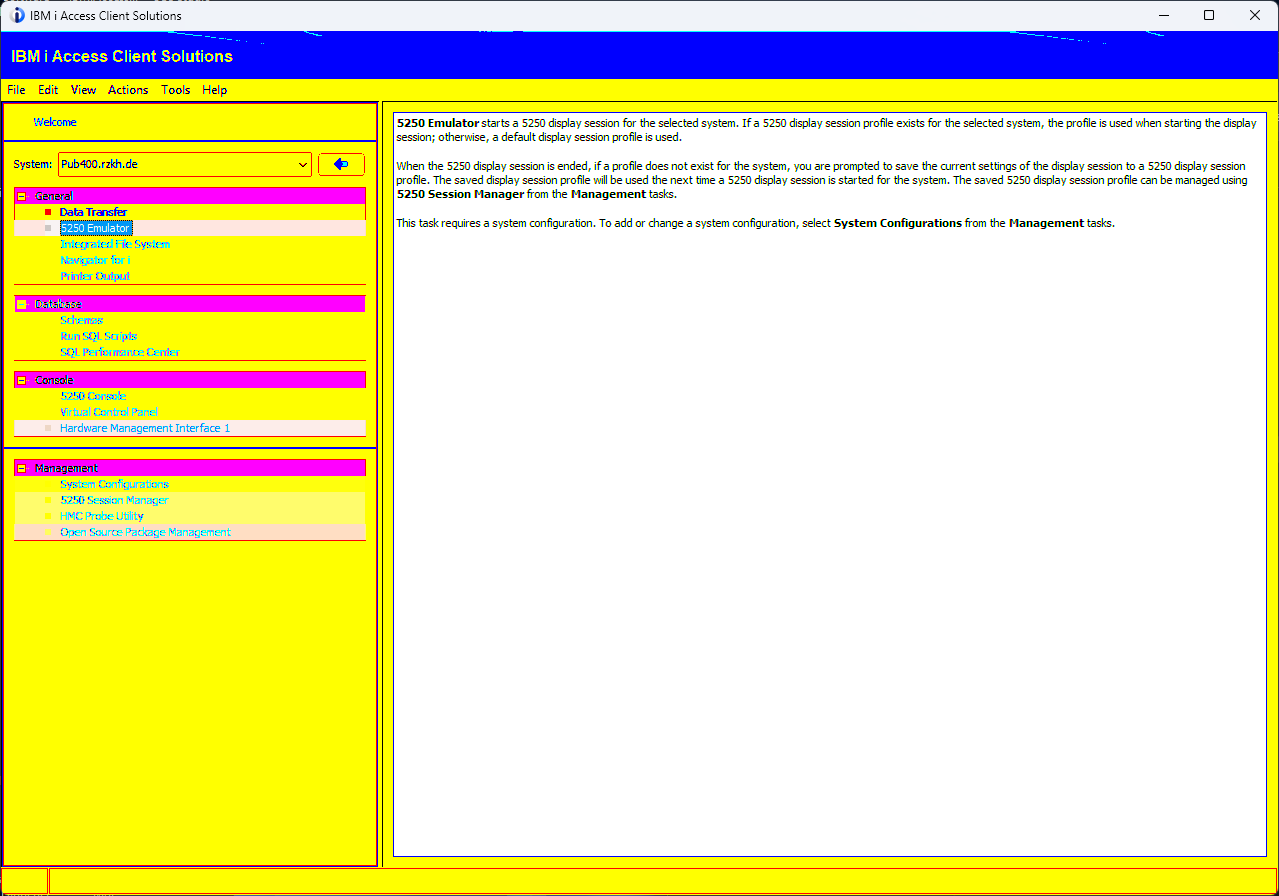
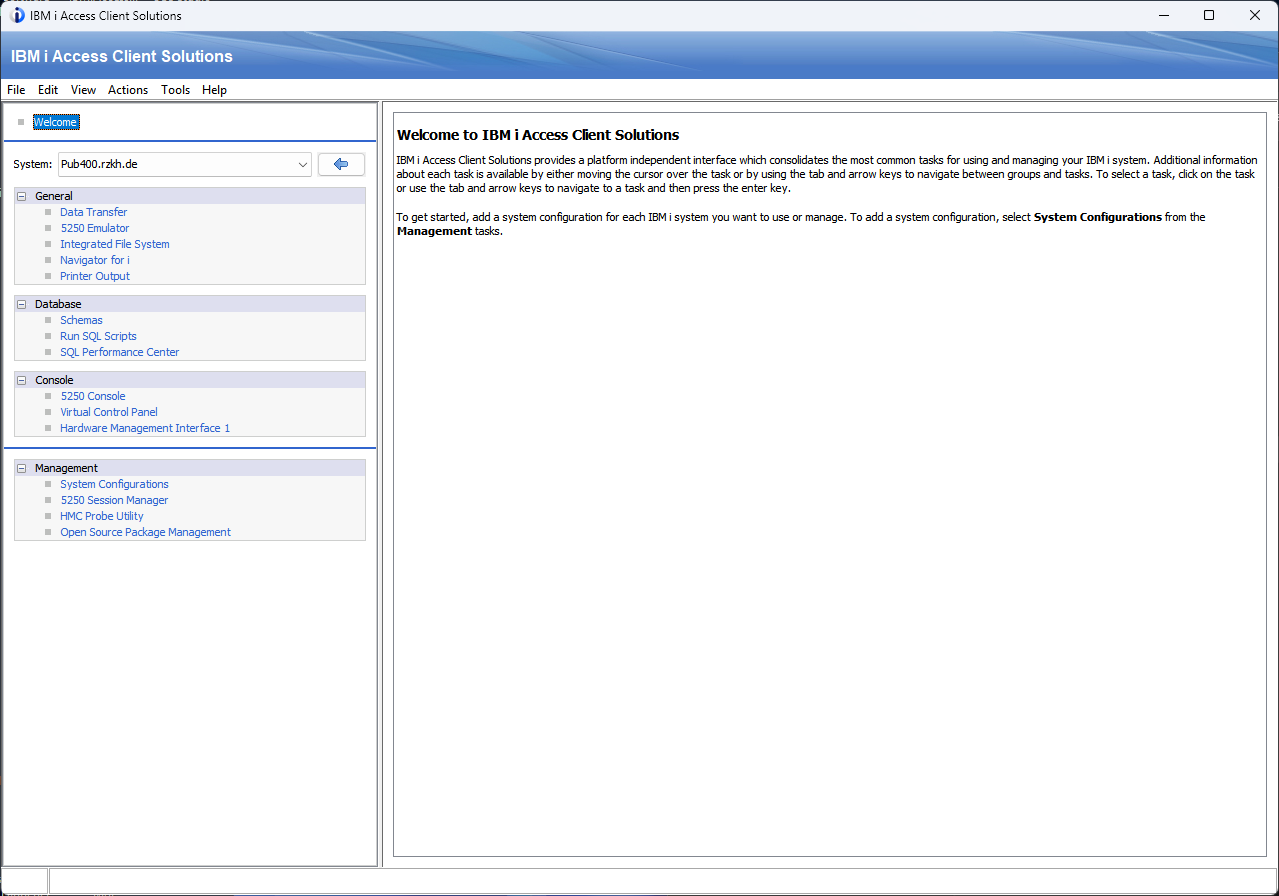
The culprit: NVIDIA RTX Dynamic Vibrance
It turns out ACS isn’t the problem at all, and neither is IBM i. It’s the graphics card.
NVIDIA’s app has an AI-powered filter called RTX Dynamic Vibrance. It’s designed to make games look punchier and more colourful. Unfortunately it also decides your 5250 session needs “enhancing” too, and the result is the dreaded yellow screen.
The fix: set it to *OFF
Yes, really. That’s it.
- Open the NVIDIA app.
- Click Graphics in the left-hand menu.
- Select the Global Settings tab.
- Find RTX Dynamic Vibrance and set it to Off.
- Restart ACS and enjoy your green screen in all its glory.
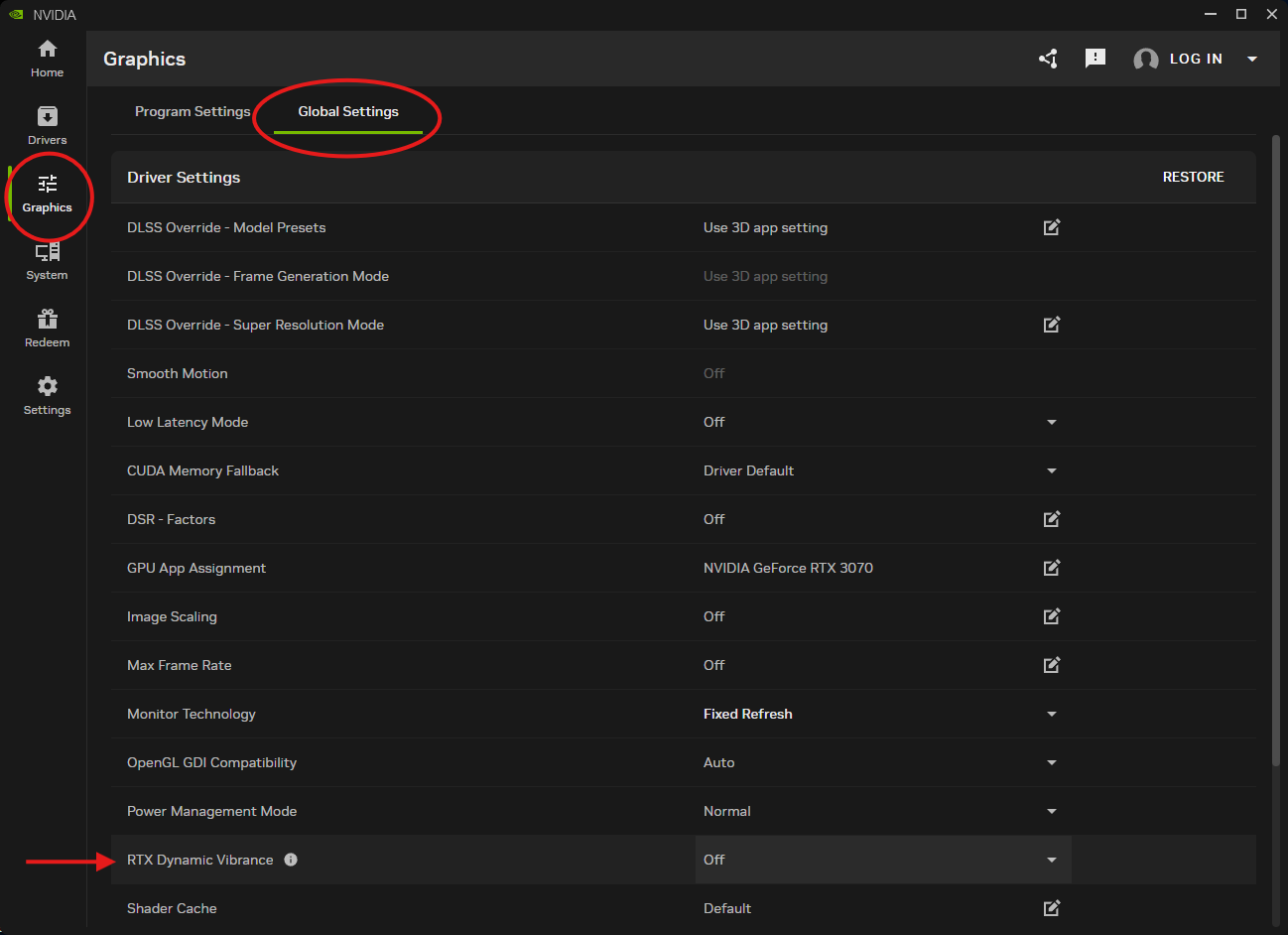
If you’d rather keep the vibrance for your gaming sessions, use the Programs tab to switch it off just for ACS (or the Java runtime it uses) instead of globally.
Not using an NVIDIA card?
Then (a) don’t worry, and (b) why are you wasting time reading this? 😄
Go and write some RPG instead.
