
Section 3: Installing Node.js on IBM i
Here's a question I get asked all the time: "Nick, which IBM i system value controls the Node.js version?"
Short answer: there isn't one. You can WRKSYSVAL until the tea goes cold and you won't find it. Node.js lives in PASE, installed as open-source RPM packages, so it plays by Unix rules, not by system value rules. The version that runs is simply the first node your shell finds on its PATH.
So in this lesson we'll sort out two things properly:
Part 1: Which Node.js is active?
IBM's packages are installed side by side, one folder per major version:
/QOpenSys/pkgs/lib/nodejs18/bin/node
/QOpenSys/pkgs/lib/nodejs20/bin/node
/QOpenSys/pkgs/lib/nodejs22/bin/node
The "default" node is just a symlink in /QOpenSys/pkgs/bin that points to one of those.
To check where you stand, run these from an SSH session:
which node # where is it coming from?
Switching versions with nodever
IBM supplies a handy little command called nodever that flips those symlinks for you:
which node # where is it coming from?
This changes the default system-wide, so check with your fellow developers before you go flipping versions on a shared box. Nobody likes a surprise Node upgrade on a Monday morning.
Pinning a version for one application
Want a single app to always run on a particular version, whatever the system default is? Call it by its full path:
That's exactly what you want in production start-up scripts, because it can't be changed by somebody running nodever on a Friday afternoon.
Part 2: Making PATH permanent
If node gives you "command not found", your PATH doesn't include the open-source bin folder. You can fix that for the current session with export, but it disappears the minute you log off. Let's make it stick.
Step 1: Make bash your default shell
Your profile script is only read reliably if you log in with bash. Set it once with either of these:
chsh -s /QOpenSys/pkgs/bin/bash
or, from Run SQL Scripts in ACS:
Step 2: Add PATH to your profile
bash reads .bash_profile in your IFS home directory if you have one, and otherwise .profile. Add these lines:
bash reads .bash_profile in your IFS home directory if you have one, and otherwise .profile. Add these lines:
echo 'export PATH' >> $HOME/.profile
This is basically creating a file called '.profile' in your home folder and it contains PATH=/QOpenSys/pkgs/bin:$PATH and export PATH so they are automatically run whenever you go
top tip: If you already have a.bash_profile, put the lines in there instead, because bash won't read.profilewhen.bash_profileexists.
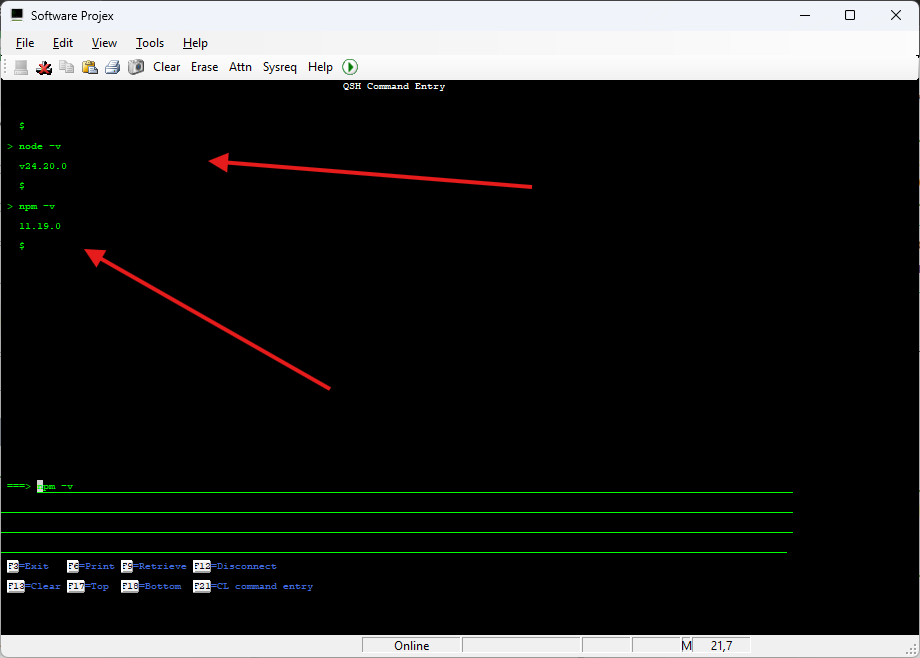
Step 3: Test it
Log off and back on over SSH (or run source ~/.profile), then:
node -v
npm -v
Doing it for every user
To set it system-wide, put the same two lines in /QOpenSys/etc/profile. You'll need *ALLOBJ authority, and each user's own profile can still override it.
Part 3: The batch job gotcha
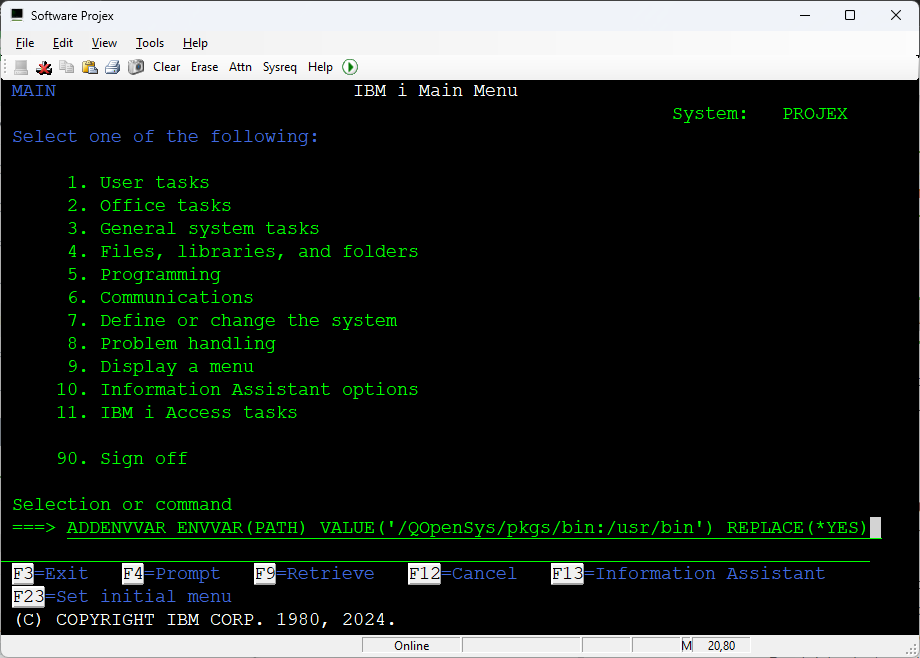
Here's the one that catches everybody. Batch jobs (SBMJOB), QSH and QP2SHELL calls don't read your profile, so your lovely PATH isn't there. You have two choices.
Use the full path to Node in your CL:
JOB(NODEAPP) JOBQ(QSYSNOMAX)
Or set the environment variable in the job first:
My preference for production is the full path every time. It's explicit, it can't be broken by a profile change, and anyone reading the CL can see exactly which Node.js it uses.
Lesson summary
- There is no IBM i system value for the Node.js version. It's whichever
nodecomes first on yourPATH. - Use
nodever listandnodever 20to see and change the system default, andnode -v/which nodeto check. - Pin a version for one app by calling
/QOpenSys/pkgs/lib/nodejsNN/bin/nodedirectly. - Make bash your default shell, then add
PATH=/QOpenSys/pkgs/bin:$PATHandexport PATHto~/.profile(or~/.bash_profile). - Batch jobs don't read your profile, so use full paths or
ADDENVVAR.
Next up, we'll get the Db2 for i database drivers installed and talking to Node.js. Kettle on!