
Green Screen isnt anything weird – it’s simply a command entry interface
I’ve lost count of the number of times someone has looked at a 5250 session, then at VS Code, or using IBM’s flavour with IBM Bob, and asked me which one is “the real way” to work with commands on IBM i.
Here’s the comforting, slightly deflating answer: they’re the same way. The windows are different. The commands are not.
When you type WRKACTJOB on a green screen and press Enter, you are handing a CL command to the operating system. When you click a compile action in VS Code, or let Bob run a command after you’ve approved it, you are handing a CL command to the operating system. The Main Menu, PDM, SEU, Code for IBM i actions, Bob’s tools, they’re all applications sitting on top of that command line. Once you can see that, a lot of the mystery (and a lot of the tribal warfare) evaporates.
Put the kettle on. Let’s take the green screen apart, then put the GUI next to it and show they’re arguing over the same teapot.
The 5250 command line is the real thing
Sign on to an IBM i and, unless someone has customised your profile, you land on the Main Menu. The name in the top-left corner is MAIN. That is not a special “operating system desktop”. It is a menu object, type *MENU, and you can jump straight back to it from anywhere with a command:
GO MAINThe GO command shows a menu. That’s all it does.
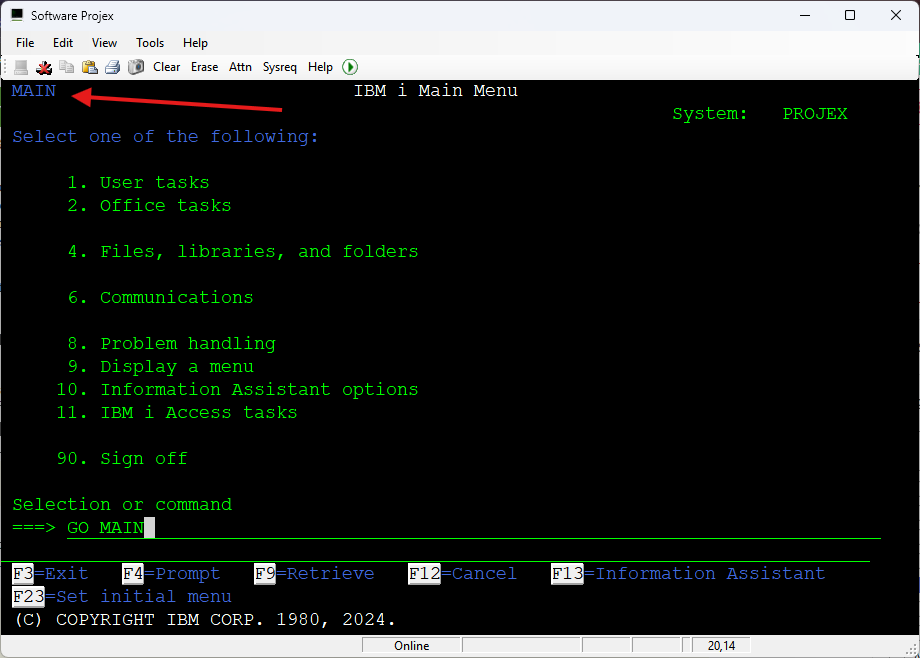
Option 1 on the Main Menu takes you to the User Tasks menu, which is also just a *MENU object, and you can skip the pointing and clicking entirely:
GO USER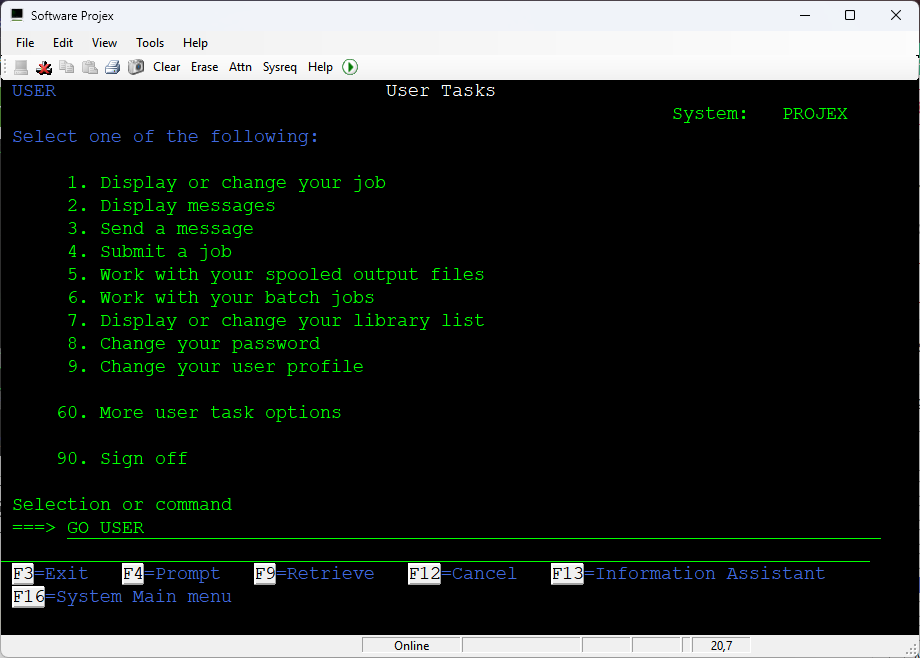
Option 5 is the Programming menu (GO PROGRAM). There are hundreds of these menus on a typical system. GO *ALL will list them if you fancy a wander.
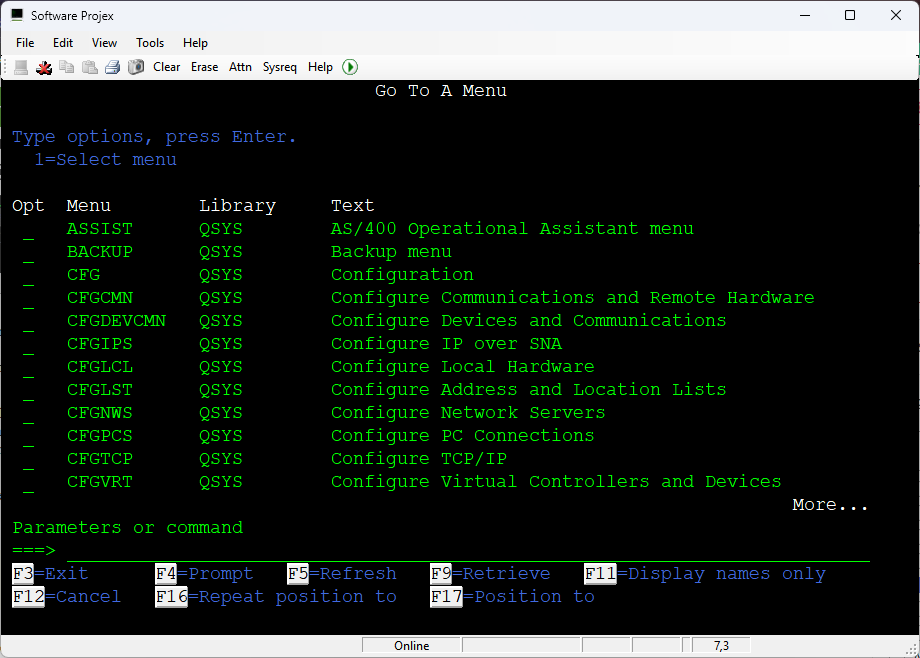
Every one of them has a command line at the bottom, and that is not a coincidence. The menu is an application. The command line is the system.
Type a number and the menu runs a command for you, usually another GO or a CALL. Type a CL command instead, and the menu gets out of the way and lets the command processor do its job. You were never “in the menus” instead of “on the command line”. You were on the command line the whole time, with a menu program stacked in front of you.
If you want the bigger, fuller command entry panel, with room to scroll through what you’ve already run, type this on that same line:
CALL QCMD
QCMD is the interactive command processor.
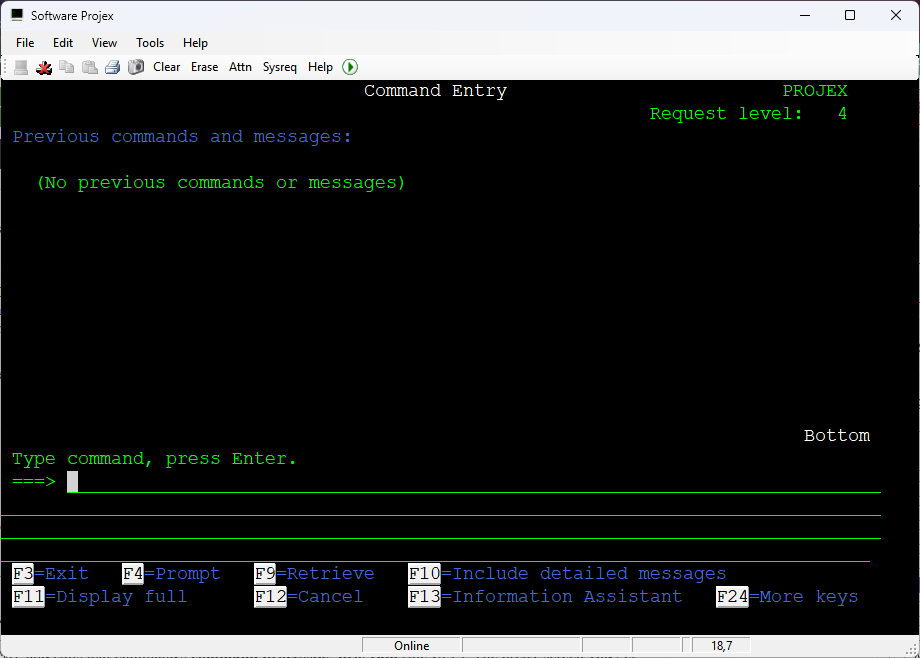
When your interactive job starts, it is typically the routing program that runs your initial program and then displays your initial menu (usually MAIN). When you type a command and press Enter, the command processor parses the string, finds the matching command object (*CMD), and calls that command’s command processing program (the CPP). The pretty screen you get from WRKACTJOB or WRKMBRPDM is not the command. It is the program the command starts.
Two programs get mentioned in the same breath here, and they’re cousins, not twins:
QCMDis the interactive request processor. It reads a command from the command line (or a request message) and runs it.QCMDEXCis the “execute this command string” program, used when another program wants to run CL. The SQL version isQSYS2.QCMDEXC.
Same idea either way: a CL command string goes in, the command processor looks up the *CMD object, and the CPP does the work.
F4, F10, and the *CMD object hiding behind every command
The other reason the green screen still feels like a superpower is prompting.
Type a command and press F4, or type it with no parameters and press Enter, and IBM i shows you the prompt. You don’t have to remember every keyword. Fill in what you need, press Enter, and the system builds the full command string for you. On that prompt, F10 reveals the additional parameters – the ones the command definition has tucked away until you ask for them.
Try it:
WRKACTJOB
Press F4.
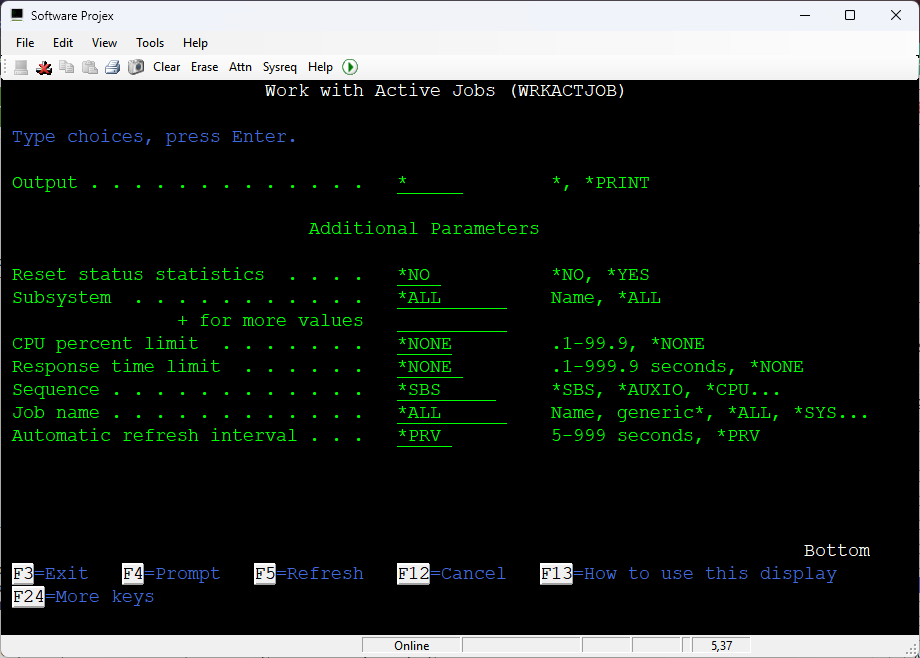
You’ll see the basic parameters (subsystem, output, and so on). Press F10 and the rest of the command appears. That’s not VS Code inventing a form, and it’s not PDM being clever. It’s the command definition itself. Every CL command is a *CMD object that describes its parameters, what’s required, what’s hidden until F10, and which program should run when you press Enter.
You can look at that object any time. To confirm you’re staring at a command, not a program:
DSPOBJD OBJ(QSYS/WRKMBRPDM) OBJTYPE(*CMD)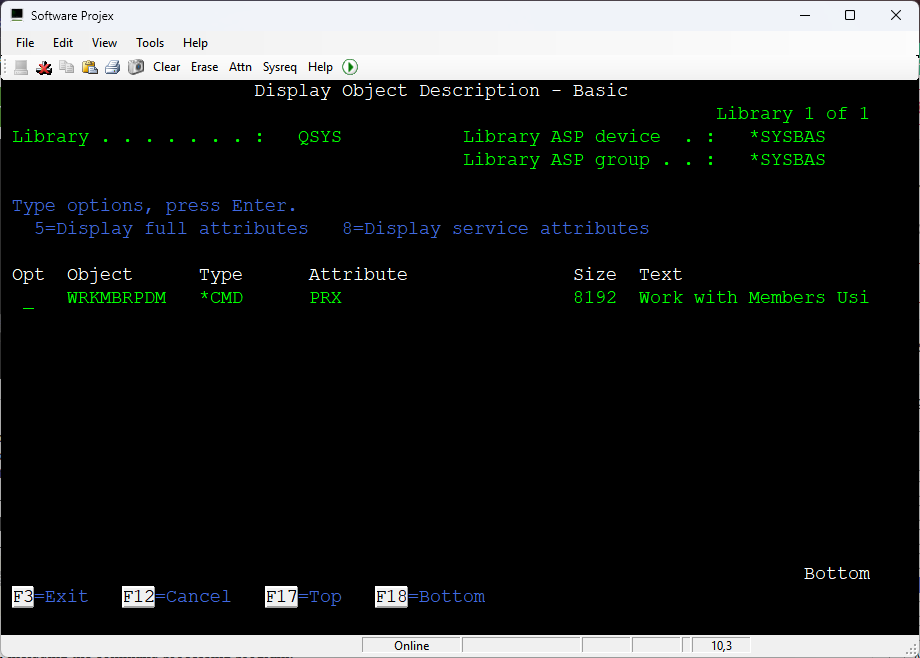
To see the definition, including the command processing program:
DSPCMD CMD(WRKMBRPDM)A useful wrinkle: a lot of IBM-supplied commands in QSYS are proxy commands. They are still *CMD objects, but instead of having their own CPP they point at the real command, often in a product library. STRPDM is a classic example – DSPCMD QSYS/STRPDM typically shows a proxy that points at QPDA/STRPDM. Run DSPCMD against the real command and you’ll see the CPP. On typical systems, the PDM “work with” commands are processed by QUOCPP in QPDA. Don’t take my word for it. Run DSPCMD on your own box and read the Command Processing Program line.
If you want to go further, RTVCMDSRC can retrieve the command definition source for a *CMD object (the parameter layout, not the CPP’s program source). That’s the same definition F4 is reading when it builds the prompt.
So when a new developer whispers, “I don’t know the command, I only know the menu,” the kind reply is: the menu knew the command all along. Have a look with F4 and you’ll start recognising them.
PDM is a command-builder with a list panel
This is the bit that usually makes people sit back in their chair.
STRPDM, WRKMBRPDM and WRKOBJPDM feel like “the development environment”. They are programs. You start them with CL commands. The list they show you is a very good list, but when you type an option next to a member, PDM is not compiling anything itself. It is building a CL command and running it.
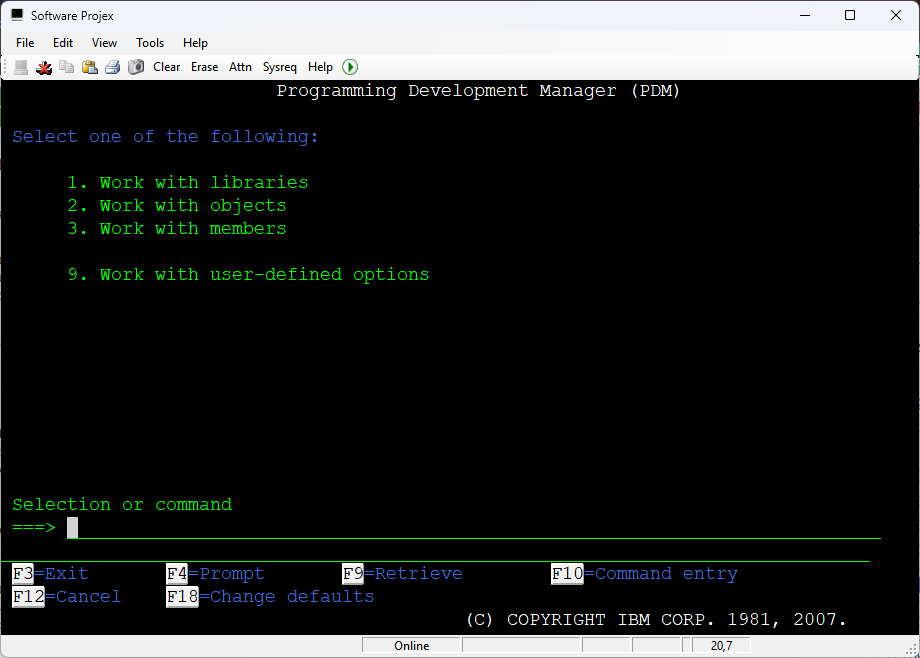
If I take option 2 (WRKOBJPDM) and look at a library I have installed called PROJEX4I:
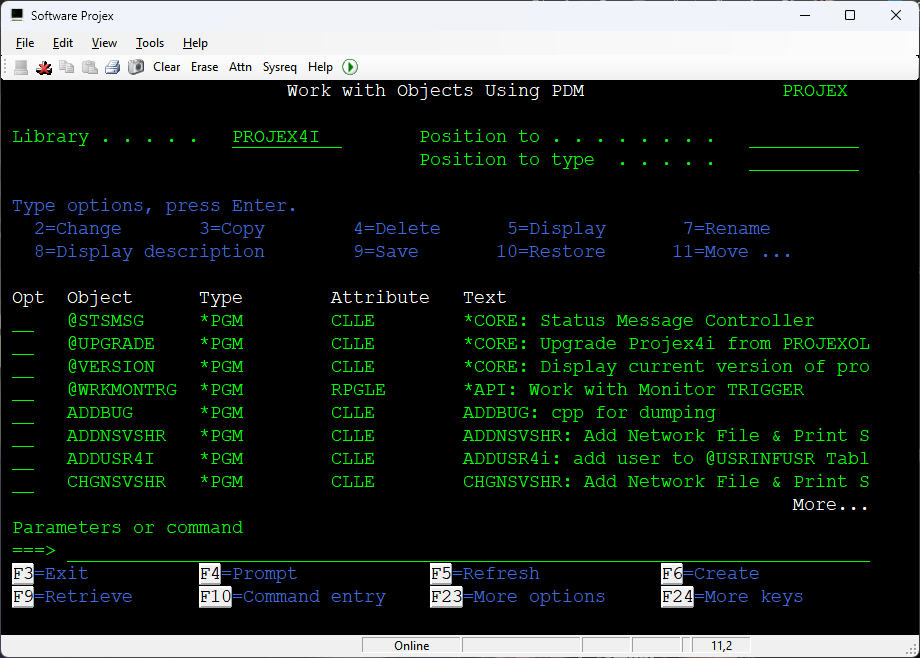
Using WRKMBRPDM to view Source Files
Lets use the WRKMBRPDM command to view source files in our PROJEXSRC library:
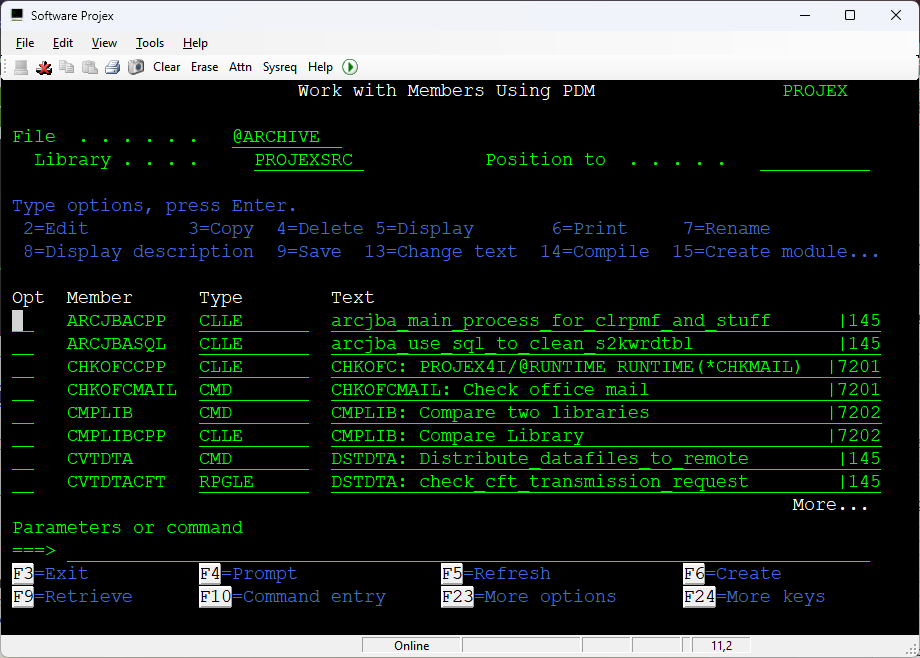
Take a source member of type RPGLE in WRKMBRPDM:
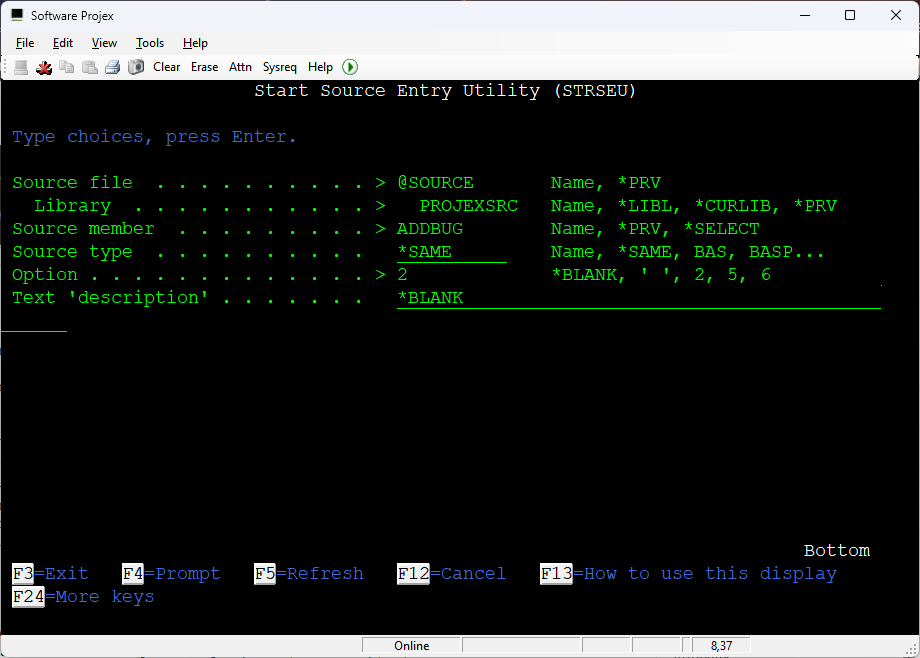
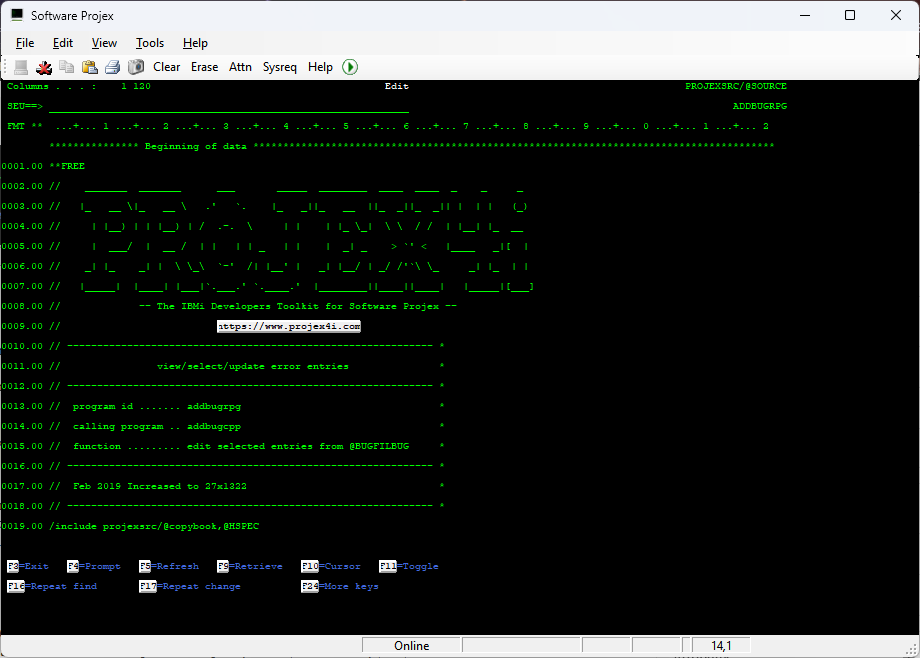
- Option 2=Edit typically starts SEU, which means it is running something like
STRSEU. SEU is another application sitting on the same command line. - Option 14=Compile typically builds a create command for that member type, for example:
CRTBNDRPG PGM(MYLIB/PAYCALC) SRCFILE(MYLIB/QRPGLESRC) DBGVIEW(*SOURCE)PDM fills in the library, the member, the source file and your compile defaults, then hands the finished string to the command processor. You can usually prompt that option (F4 on the option, or the prompt character) and watch the command appear. There it is. The same command you could have typed yourself.
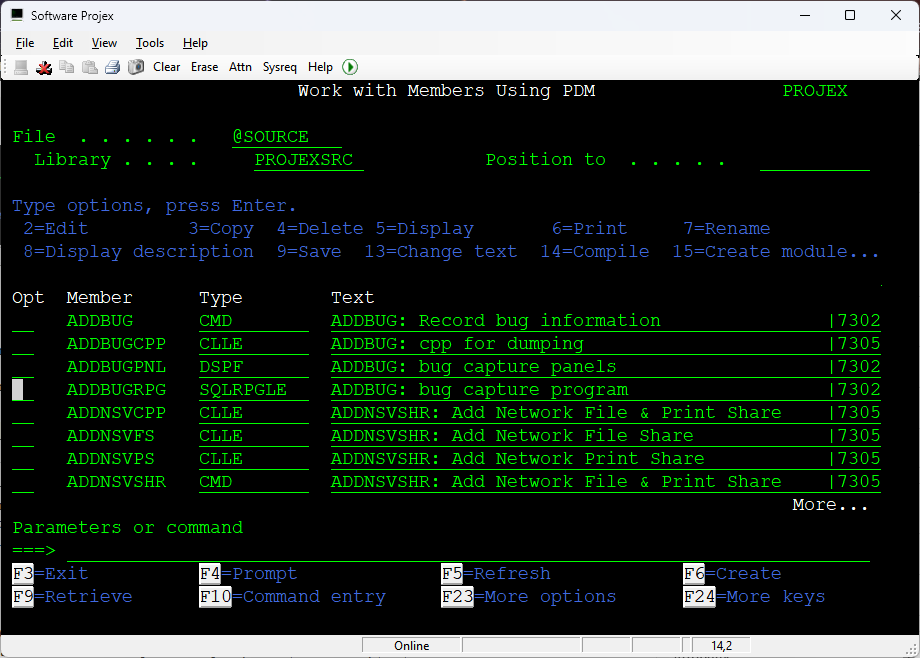
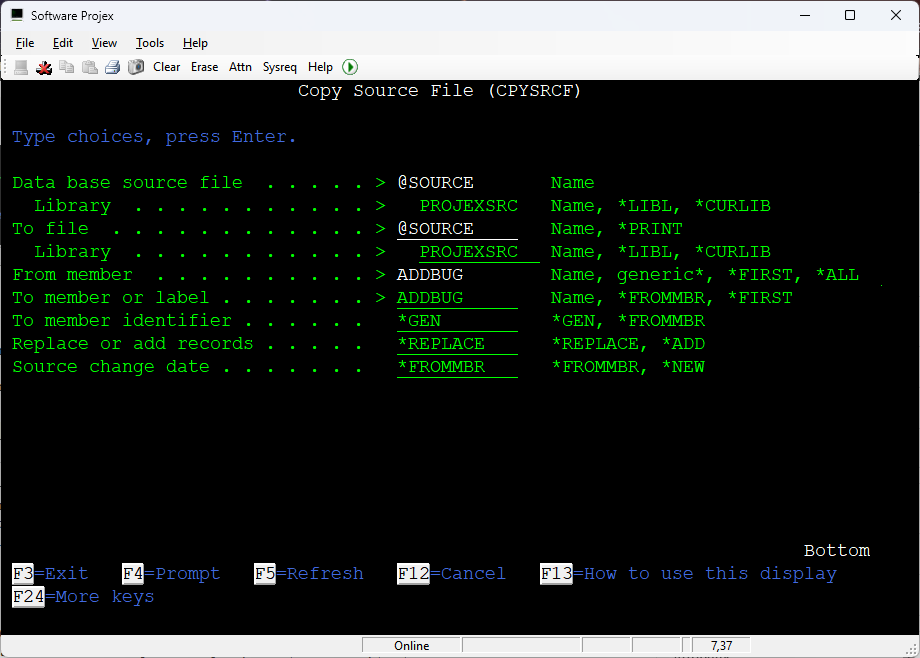
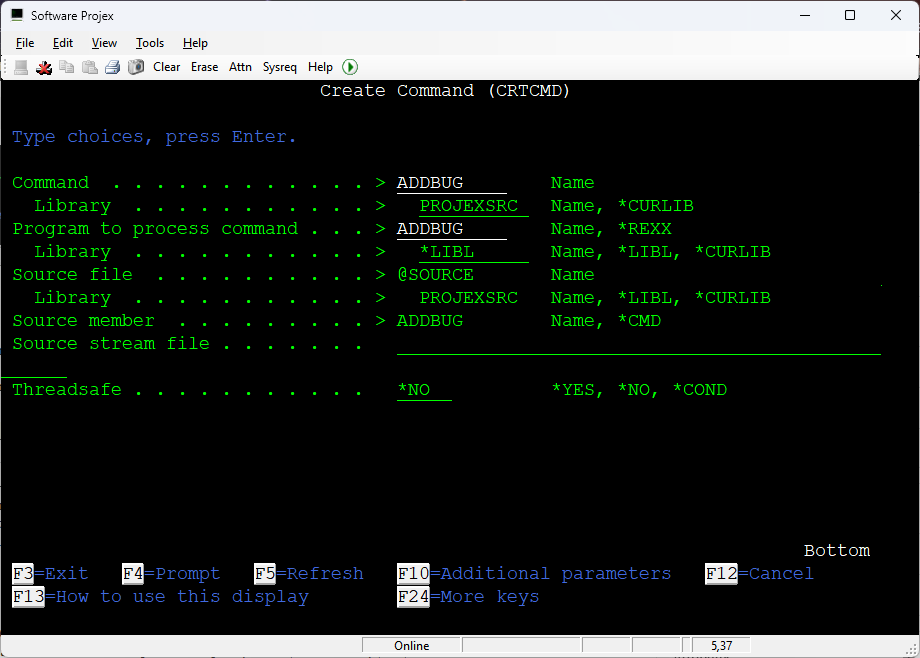
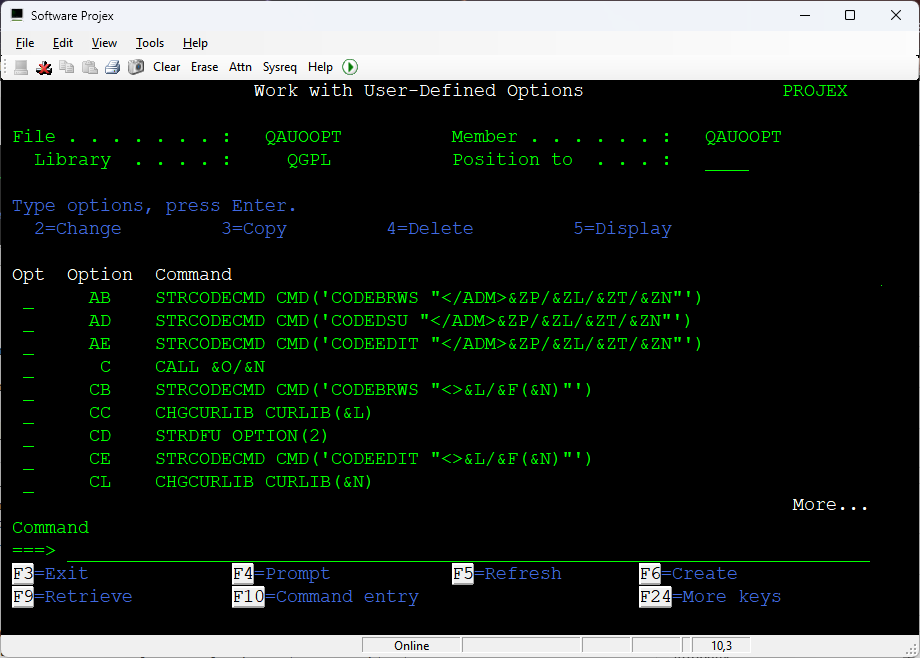
If you want proof you can hold in your hand, press F16 from a PDM list (Work with Libraries, Objects or Members) to Work with User-Defined Options. Those options live in a physical file. The default is QAUOOPT in QGPL (create your own copy if you share a machine with people who enjoy “improving” other people’s options). Each row is a two-character option and a command string. User-defined options can’t use 00 to 99 – those numbers are reserved for PDM’s own options – but they work the same way: build a command, run the command.
PDM even has substitution variables, so the command can pick up the row you’re standing on. For a member list, the ones you’ll use every day are:
&L– library&F– source file&N– member name
A user-defined option to create a bound RPG program looks like this:
CRTBNDRPG PGM(&L/&N) SRCFILE(&L/&F) DBGVIEW(*SOURCE)Or the classic example for a Query Management Query, which option 14 doesn’t cover:
CRTQMQRY QMQRY(&L/&N) SRCFILE(&L/&F)When you take that option, PDM substitutes the values and runs the command. That file of options is the whole trick. PDM is a list generator and a command builder. So is every WRK* command you’ve ever loved. WRKACTJOB, WRKSPLF, WRKOBJLCK — they’re programs that present a list and then run commands for the option you typed.
Once you’ve seen QAUOOPT, you will never again think of PDM as a separate universe.
VS Code and Bob are standing on the same command line
Now walk over to the other window.
VS Code with the Code for IBM i extension talks to your IBM i over SSH. You get a modern editor, a library list, source members or IFS files, Git, and a Problems view. It feels like a different planet from SEU, and for editing it is. For actually doing things on the system, it is startlingly familiar.
The pipes under that SSH session are worth a mention, because people sometimes assume the GUI has its own private back door. It hasn’t. SQL (including SQL services such as QSYS2.QCMDEXC) typically travels over Code for IBM i’s database connection, Mapepire. Compile Actions are a different pipe: the CL is run in the ILE environment. Different routes, same machine, still commands.
A member compile Action looks like this:
[

{

"name": "Create Bound RPG Program (CRTBNDRPG)",

"command": "?CRTBNDRPG PGM(&OPENLIB/&OPENMBR) SRCFILE(&OPENLIB/&OPENSPF) OPTION(*EVENTF) DBGVIEW(*SOURCE)",

"extensions": ["RPGLE"],

"type": "member",

"environment": "ile"

}

]
Look at those variables:
&OPENLIB— the library of the source member you’ve got open&OPENSPF— the source file (the old&F)&OPENMBR— the member name (the old&N)
That is PDM’s user-defined options, wearing a hoodie. QAUOOPT became an Action (you can keep a set of them in an actions.json file and put it in source control, which is a sentence I never thought I’d write about option 14). &L, &F and &N became &OPENLIB, &OPENSPF and &OPENMBR. The command in the middle is still CRTBNDRPG.
The OPTION(*EVENTF) bit is the modern bonus. After the compile, Code for IBM i can read the event file and drop the errors into the Problems view, instead of sending you off to scroll a spooled compile listing. Same create command. Nicer glasses for the diagnostics.
IBM Bob, with the Premium Package for i, sits on top of that same connection. It doesn’t invent a second operating system. When Bob compiles, it can look up your Code for IBM i Actions (get_compile_actions) and run one (execute_compile_action). When it needs to run CL directly, it uses a tool called execute_cl_command. It also has tools for SQL and PASE. The important bit for this conversation is the CL path: Bob proposes a command, you approve it (unless you’ve auto-approved that tool group), and the command runs on the IBM i.
In other words:
| What you click or type | What actually runs |
|---|---|
| Main Menu option 1 | A command, usually GO USER |
| PDM option 14 | A create command such as CRTBNDRPG |
| PDM user-defined option | Whatever you stored in QAUOOPT |
| PDM option 2 | SEU, via STRSEU |
| Code for IBM i Action | The CL in the Action, after variable substitution |
Bob compile / execute_cl_command | The same kind of CL command, with your approval |
And if a program or an SQL script needs to do it without a 5250 or a GUI, it can still say:
CALL QSYS2.QCMDEXC('CRTBNDRPG PGM(MYLIB/PAYCALC) SRCFILE(MYLIB/QRPGLESRC) DBGVIEW(*SOURCE)');Different doorway. Same corridor.
A side-by-side: compile the same program
Let’s say we have PAYCALC in MYLIB/QRPGLESRC.
On the green screen, from a command line:
CRTBNDRPG PGM(MYLIB/PAYCALC) SRCFILE(MYLIB/QRPGLESRC) DBGVIEW(*SOURCE)Or, if you’d rather not type the keywords, type CRTBNDRPG, press F4, fill in the program and source file, press F10 if you need the extra parameters, then Enter.
Or open WRKMBRPDM FILE(MYLIB/QRPGLESRC), type 14 next to PAYCALC, and let PDM build that same command.
In VS Code, open the member, press Ctrl+E, and run the CRTBNDRPG Action. Watch the command it built. It should feel like looking over PDM’s shoulder, only with &OPENLIB instead of &L.
In Bob, ask it to compile PAYCALC. It should come back with a compile Action or an execute_cl_command request that looks, once again, like CRTBNDRPG. Read it before you approve it. If the command is wrong, the window it arrived in is not the point. The command is the point.
Comparing the two windows
| Green screen (5250) | VS Code and IBM Bob | |
|---|---|---|
| Speed, when you already know the command | Very hard to beat. WRKACTJOB SBS(QBATCH) and Enter, done. | A few more clicks or a prompt, then the same command runs. |
| Discoverability | Menus, GO, command grouping by verb, F4 prompts, F1 help. Brilliant once you know it exists. | Command palettes, Actions, object browsers, and (with Bob) an assistant that can fetch CL documentation for you. Easier to wander into. |
| Prompting | F4 to prompt, F10 for additional parameters. Still the gold standard for CL. | A leading ? on an Action shows the command before it runs. Bob can look up parameters, but you should still read what it’s about to execute. |
| Source editing | SEU. It works. It has done since dinosaurs roamed QSYS. It is also a single-member text editor from another age. | A proper editor: colour, multiple files, split views, search across members, refactoring, the Problems view. This is the biggest genuine win. |
| Git | Possible with IFS and stubbornness, not something I’d wish on a friend. | Native. Branches, diffs, history, pull requests. If your source lives in the IFS or is deployed from a Git repo, this alone is worth the move. |
| AI help | The experienced developer at the next desk, if you’re lucky. | Bob (and similar tools) can explain, convert, test-plan and draft code. They still run your commands on your system, so keep the approval step on. |
| Remote use | 5250 is tiny. It will work over a dodgy hotel Wi-Fi on the Costa Blanca while a seagull eyes your sandwich. | Needs a decent SSH session. Much nicer when the link is good, slightly more fragile when it isn’t. |
| Learning curve | Function keys, library lists, and a verb-object language that rewards memory. Slow start, then very fast. | The editor is familiar to anyone from outside the platform, but you still need the library list, the compile command, and a sense of what the system is doing. The GUI does not replace CL. It types it for you. |
When the green screen still wins

I’m not throwing my 5250 emulator away, and neither should you.
Use the green screen when you want to operate the system, not write a novel in RPG. WRKACTJOB, WRKSPLF, DSPJOBLOG, WRKMSG, WRKOBJLCK, a quick CHGJOB, a sneaky STRDBG — these are faster typed than hunted through a tree view. In an incident, when a job is stuck and three people are asking you what’s going on, the command line is still the shortest path between your brain and the machine.
Use it when the network is awful. A 5250 session is a few rows of text. It will keep working in places a full IDE will just sit there sighing.
Use it when you’re on a customer’s locked-down terminal, or a restricted profile that only has a menu and a command line, or the GUI tools aren’t installed yet. The system you arrived to fix already has QCMD. It does not already have your VS Code extensions.
And use it to learn. If you only ever click Actions, you will eventually be the person who cannot compile a program when the pretty window isn’t there. Type the command a few times. Press F4. Read what PDM built. That knowledge travels with you into VS Code and Bob. It never goes the other way.
When VS Code and Bob win
Use the GUI when you are actually writing and changing source. SEU will not give you decent syntax highlighting, multiple members side by side, or a decent search. Life is too short, and tea goes cold.
Use it when the team is in Git, when you want a code review that isn’t “F15 and squint”, and when compile errors should appear next to the line that caused them.
Use Bob when you want help with the boring or the unfamiliar: explaining an old program, drafting a test, suggesting a modernisation step, looking up a command you half-remember. Then make Bob show you the CL (or the diff) and approve it like a grown-up. The AI is another application on top of the command line, with a better vocabulary and a need for supervision.
Use both together, honestly. That’s what I do. Editor and Git and AI on one screen. A 5250 session on the other, ready for
WRKACTJOB. Same IBM i. Two windows.
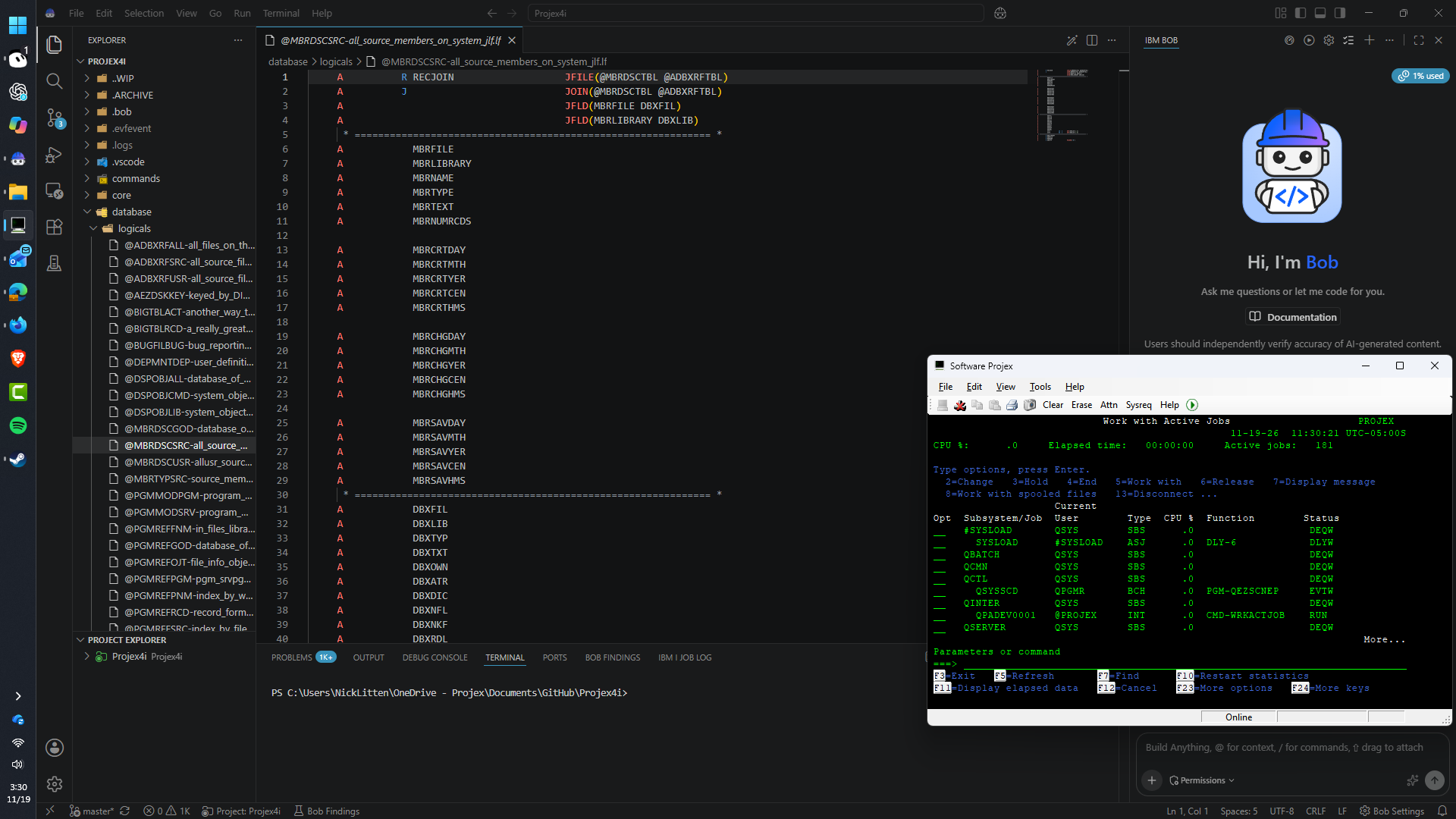
It’s CL all the way down
If you remember one thing from this post, make it this:
Learn the commands, and every tool on this platform starts making sense.
The Main Menu is a *MENU that runs commands. PDM is a program that builds commands from a list and a file of options. SEU is a program you start with STRSEU. Code for IBM i Actions are user-defined options with longer variable names. Bob is an assistant that asks for permission, then runs the same commands through its tools.
The 5250 is direct entry into that world. The GUI is a nicer front door into that world. Neither one replaces the command processor. They just have different opinions about how you should dress to visit it.
And when someone tells you they don’t need to learn the command line because they have a modern IDE, smile politely, slide the kettle back on, and show them the Action it just ran. There, in black and white (or green and black, if you’re doing it properly), will be a command they could have typed in 1994.
The glasses changed. The language didn’t.
