
So, you’ve got IBM i Access Client Solutions (ACS) on your system, and it’s as reliable as a trusty old pickup truck. But maybe it’s time to give that truck a new paint job or a fancy set of hubcaps, metaphorically speaking of course!
Customizing ACS isn’t just about making it work better; it’s about making it yours, with a sprinkle of personality to brighten your workday.
Let’s dive into how you can tweak ACS to fit your style, all while keeping things professional:

Why Bother Customizing IBM i ACS?
Think of ACS as your digital Swiss Army knife for IBM i tasks: 5250 emulation, file transfers, database queries, the works. It’s powerful out of the box, but customization is like teaching that knife to juggle. You can streamline repetitive tasks, make the interface feel like home, and maybe even impress your coworkers with your tech flair.
Whether you’re a system admin or a developer, a few tweaks can save time and make ACS feel less like a tool and more like a sidekick.
Getting Started: The Customization Playground
Before we start tinkering, make sure you’ve got the latest version of ACS. It’s Java-based, so it runs on Windows, macOS, or Linux… and you can grab it from IBM’s website or your IBM i system’s IFS at /QIBM/ProdData/Access/ACS or of course from here.
Once you’re set, launch ACS and get ready to explore its customization options, which are tucked away like Easter eggs waiting to be found.
Configuration Files: The Secret Sauce
ACS keeps its settings in configuration files, primarily AcmeConfig.properties and AcmeConfig.xml, stored in your user profile’s directory (like ~/.acs/ on Linux/macOS or %USERPROFILE%\.acs\ on Windows). These files are the heart of your customization adventure. Think of them as the recipe card for your favorite dish, and you can tweak the ingredients to make it just right.
- AcmeConfig.properties: This is where you set global preferences, like your default IBM i system or connection timeouts. It’s a simple text file, so you can edit it with any text editor (Notepad, VS Code, or even nano if you’re feeling fancy).
- AcmeConfig.xml: This one’s for session-specific settings, like your 5250 emulator’s look and feel. It’s XML, so it’s a bit more structured, but don’t worry it’s not rocket science.
Pro tip: Always back up these files before you start tweaking. Nobody wants to accidentally turn their trusty ACS into a digital paperweight!
Customizing the 5250 Emulator: Make It Pop
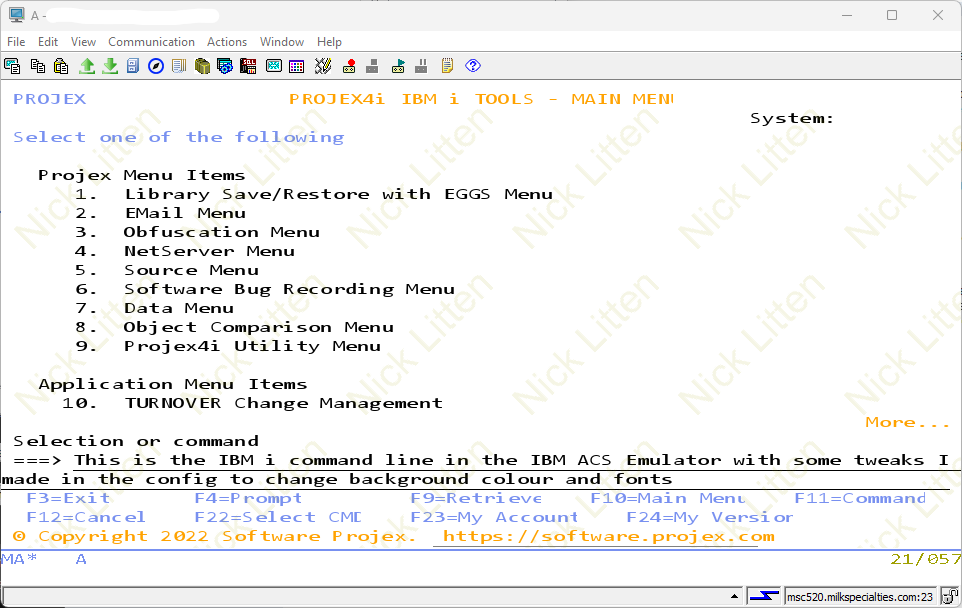
The 5250 emulator is the green-screen classic of IBM i, but it doesn’t have to look like it’s stuck in the 1980s. Here’s how to give it a glow-up:
- Fonts and Colors: Tired of that retro monochrome vibe? Head to the emulator’s preferences and play with font sizes, colors, and backgrounds. Want a neon pink cursor? Go for it (just don’t blind your coworkers).
- Keyboard Mapping: If you’re constantly hitting the wrong keys for field exits, remap them to something intuitive. You can create a custom .kbd file to make your keyboard feel like an extension of your brain.
- Macros: Got repetitive tasks? Record a macro to automate them. It’s like teaching ACS to do your chores while you sip coffee. Save macros in the Macros folder and assign them to hotkeys for instant gratification.
File Transfer: Less Yawn, More Zip
Transferring files between your PC and IBM i can feel like waiting for a fax machine, but ACS lets you speed things up with some clever customization:
- Transfer Profiles: Create profiles for common file transfers in the Data Transfer tool. You can save them as .dtf files and automate uploads/downloads with scripts. It’s like setting up a conveyor belt for your data.
- SQL Queries: Use ACS’s Run SQL Scripts to pull data directly into spreadsheets. Save your favorite queries in .sql files for quick access. It’s like having a librarian who knows exactly where your favorite book is.
Automating with Scripts: Let ACS Do the Heavy Lifting
If you’re the type who’d rather let tech do the grunt work, ACS’s scripting capabilities are your new best friend. You can write scripts in JavaScript or VBScript to automate tasks like connecting to systems or running commands. Store them in the Scripts folder and run them from the ACS interface. It’s like giving ACS a to-do list and watching it check things off.
For example, a simple JavaScript could automate a connection to your IBM i system:
var system = “myIBMiSystem”;
var user = “yourUsername”;
var password = “yourPassword”;
function connectToSystem() { var acs = new ACS(); acs.connect(system, user, password); acs.runCommand(“WRKSYSSTS”); }
connectToSystem();
Save this as connect.js in your ACS Scripts folder, and you’re one click away from system status bliss.
Shhhh… don’t tell your boss how easy it was.
Sharing the Love: Distributing Customizations
Made ACS look and work like a dream? Share your masterpiece with your team! Package your configuration files, macros, and scripts into a .zip file and distribute it. Just make sure sensitive info like passwords isn’t included. Nobody needs that kind of drama.
Your team can import these settings via ACS’s “Import Configuration” option, and suddenly everyone’s working smarter, not harder.
Security: Keep It Locked Down
Customizing ACS is fun, but don’t get so carried away that you leave the digital doors unlocked. Use encrypted connections (like TLS) for file transfers and sessions. Store sensitive settings like passwords in a secure vault, not plain text. And if you’re sharing configurations, double-check for anything that might spill the beans on your setup.
Wrapping Up: Your ACS, Your Rules
Customizing IBM i Access Client Solutions is like decorating your office cubicle, it’s all about making the space work for you. Whether you’re tweaking the emulator’s look, automating file transfers, or scripting your way to efficiency, ACS gives you the tools to make your IBM i experience smoother and maybe even a little fun.
So go ahead, add some flair, and turn ACS into the coolest tool in your tech toolbox. Just don’t get too carried away with the neon cursors!
Install IBM i ACS
IBM-i ACS is JAVA based, so it can be installed on Windows, MAC & Linux devices. The legacy IBM Client Access is no longer supported. IBM Client Access & ACS can both be installed on the same PC and live quite happily next to each other. So what are you waiting for?
